General Tab
Categories:
The most critical ALS settings are presented in the General tab.
Overview
This tab is divided into 3 sections:
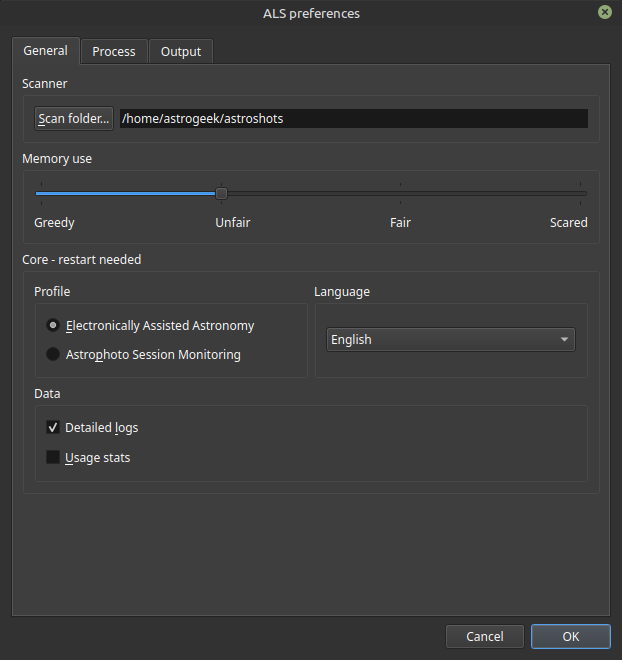
The General tab in ALS preferences
Scanner
Scan folder
Defines the path of the folder monitored by ALS to detect subs recorded by your acquisition system.
💡 Detection works regardless of the subfolder structure inside the scan folder.
If your acquisition system saves subs in subfolders organized by target or date, monitor the parent folder of these subfolders.
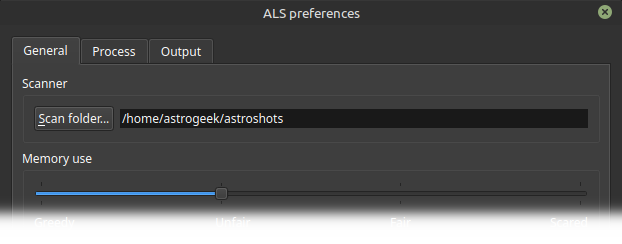
Scan folder preferences
- 🖱️ click
Scan folder...to configure the scan folder - The configured path is displayed to the right of the button
ℹ️ Default: ∅
Memory use
Defines ALS’s behavior regarding the amount of memory it leaves to other applications.
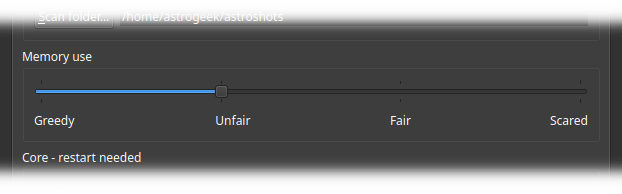
Memory use preferences
The names associated with these slider steps are as vague as memory management can be.
We advise you to experiment with an open and joyful mind…
⚙️ Or consult the Scanner module’s detailed documentation
ℹ️ Default: Unfair
Core
Profile
ALS offers two different operating modes, called profiles.
Profiles optimize ALS’s behavior for specific uses:
| Profile | Scanner Responsiveness | Processing Priority | Sigma Clipping |
|---|---|---|---|
| Electronically Assisted Astronomy | High | Calibration + stacking | OFF |
| Astrophoto Session Monitoring | Normal | Image processing | ON |
Electronically Assisted Astronomy keeps detection, calibration, and stacking responsive so new subs can be integrated
quickly during a live observing session.
Astrophoto Session Monitoring gives more priority to image processing, which is commonly used between
low-paced incoming subs. It also enables sigma clipping in mean stacking mode to remove transient bright artifacts
such as satellite trails.
- 🖱️ Select the profile matching the activity you want ALS to support.
⚙️ You will find details on how profiles impact the Scanner in the detailed documentation.
ℹ️ Default: Electronically Assisted Astronomy
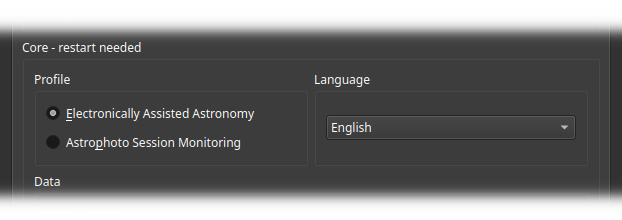
Profile and language preferences
Language
Defines the language of the ALS user interface.
-
🖱️ The following choices are available:
- System: ALS follows the system language
- French
- English
- Russian
ℹ️ Default: System
Network
Send usage statistics on startup
It is very useful for us to know which versions of ALS are being used and on which platform.
We would be very grateful if you allow ALS to send us usage statistics, but we also understand that you may be reluctant to enable such a feature.
Please note that:
- ALS will only send the following information at each startup:
- ALS version.
- Machine architecture.
- Operating system type.
- We do not seek to identify or geolocate the source of this information.
Click here to see how you can verify these claims yourself
ALS and our tracking tools are opensource software, their source code is publicly available.
- 🖱️ Check
Send usage statistics on startupto enable the collection of ALS usage data.
ℹ️ Default: OFF
Check for updates on startup
ALS can check if a new version is available at each startup.
If a new version is available, a message will be displayed below the Modules group on the Main controls panel.
- 🖱️ Check
Check for updates on startupto enable the new version check.
ℹ️ Default: OFF
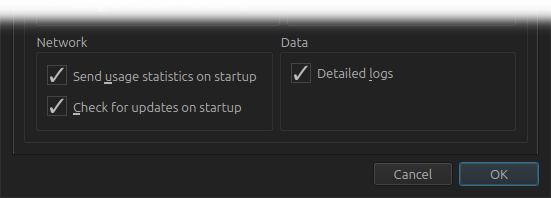
Network and Data preferences
Data
Detailed logs
Manages the level of detail in the messages written to the log file.
The log file is named als.log. It is located in your home folder:
/home/astrogeek/als.log
C:\Users\astrogeek\als.log
/Users/astrogeek/als.log
- 🖱️ Check
Detailed logsto enable detailed message logging.
Detailed logs can slow down the application. Use this option when you need to analyze a malfunction or plan to report an issue and provide us with as much information as possible.
Detailed logs include:
- application startup configuration
- your system’s characteristics
- application-specific metrics
- communications between all modules
- detailed processing steps
ℹ️ Default: OFF