main controls
Categories:
Introduction
During this chapter, you will:
- get familiar with ALS main controls
- Deepen your knowledge on key features
Overview
The ALS control station is the Main Controls interface panel
Located on the left side of the ALS interface, it organizes the most used controls and displays into sections:
-
Session controls and status
-
Stack controls and stack information
-
Image server controls and status
-
Image saving tools
-
Information on the usage status of the main modules
-
Notification when a new ALS version is available
-
Issues indicator
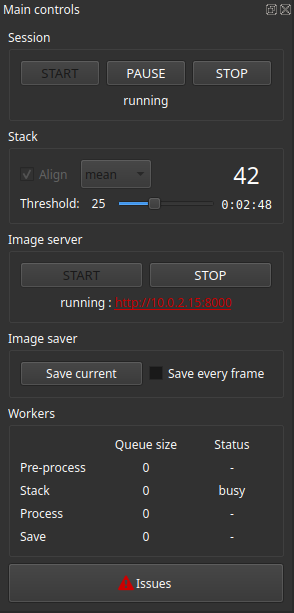
The main controls panel
Session
The session section of the panel includes 2 areas:
Session Controls
- R
or 🖱️ click
STARTto:- start a new session
- resume a paused session.
- R
or 🖱️ click
PAUSEto pause a running session. - X
or 🖱️ click
STOPto stop a running session.
Session Status
Finally, the status of the current session.
In this example, the session is running.
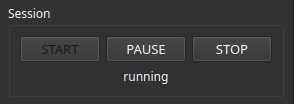
The session section
Stack
The stack section of the panel controls the Stacker module.
Alignment and Stacking Mode
-
A or 🖱️ check
Alignto enable subs alignment -
Use the dropdown list to set the stacking mode to use:
-
meanUsed for electronically assisted astronomy or for monitoring a series of acquisitions.
⚙️ The value of each pixel in the generated stack is the average value of that pixel across all subs in the stack.
ℹ️ Outliers are rejected automatically once at least 5 subs are present in the stack and the Astrophoto profile is in use
-
sumUsed for creating star trails or circumpolar images.
⚙️ The value of each pixel in the generated stack is the sum of the values of that pixel across all subs in the stack.
-
Minimum Matches
Alignment works by comparing each sub with the alignment reference, looking for matching star groups.
Poor quality subs, with too few or distorted stars, may not produce enough matches to be aligned reliably.
Any sub with fewer matches than the configured minimum is discarded.
- 🖱️ Use the
Min. matchesslider to adjust the minimum number of matches required.
When a sub is discarded:
-
The sub is not added to the stack and the Stacker module waits for the next sub.
-
A WARNING is added to the Session log. It contains the text ‘Alignment match count is lower than configured minimum’
-
The
Acknowledgebutton in theSession Logpanel is activated.If the
session logpanel is hidden, the issue indicator appears in the Issues section.
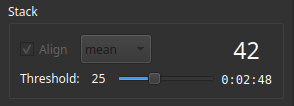
The stack section
💡
- Aim to set the minimum matches value as high as possible without causing sub discards.
- Lowering the minimum matches value is useful for long focal length shots where stars are few.
ℹ️
- Alignment is enabled at each ALS startup.
- The stacking mode is set to mean at each ALS startup.
- The minimum matches value is global and constantly saved.
Stack Information
On the right of the alignment controls and minimum matches setting, you will find information about the stack:
- the number of subs currently in the stack
- the cumulative exposure times of the subs in the stack.
In this example, we have stacked 42 subs for a total of 2h 6mn.
Image Server
The Image Server section of the panel controls the Server module.
Server Controls
- W
or 🖱️ click
STARTto start the server. - W
or 🖱️ click
STOPto stop the server.
Server Information
Below the server controls, you will find its status display.
When the server is started:
- the URL built from the displayed address and port configured in Preferences is added to the status.
- Q toggles the display of the QR code for the server URL.
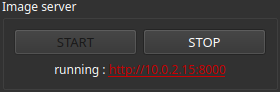
The server section
Image Saver
The Image Saver section of the panel allows triggering additional saves beyond the default operation of the Save module.
Save Controls
- S
or 🖱️ click
Save currentto save the last processing result with a timestamp. - F
or 🖱️ check
Save every frameto enable saving each next processing result with a timestamp.
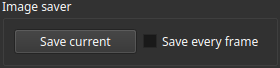
The image saver section
ℹ️ INFO
Save every frame is disabled at ALS startup.
Modules
The Modules section of the panel displays details of each main module.
- The size of the associated queue.
- The module status: Displays busy when the module is processing an image.
Available Update
When Check for updates on startup is enabled in the
General preferences, ALS checks for an available new version after startup.
If a new version is available, the label ALS version is available appears below the Modules section,
where version is the available version number.
Issues
When a new issue is detected and the Session Log is hidden, the Issues button appears in this section.
L
or 🖱️ click Issues to display the Session Log and review the new issues.
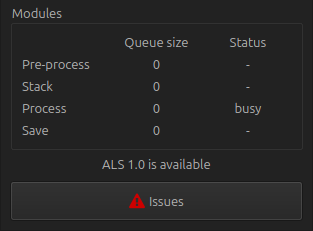
Modules, Available update and Issues
Conclusion
The main controls of ALS are no longer a mystery to you!
Next step: the Processing panel.