Process Tab
Categories:
The ALS processing settings are presented in the Preferences page Process tab
Overview
This tab contains only one section: Preprocess
It gathers the settings for all calibration tasks:
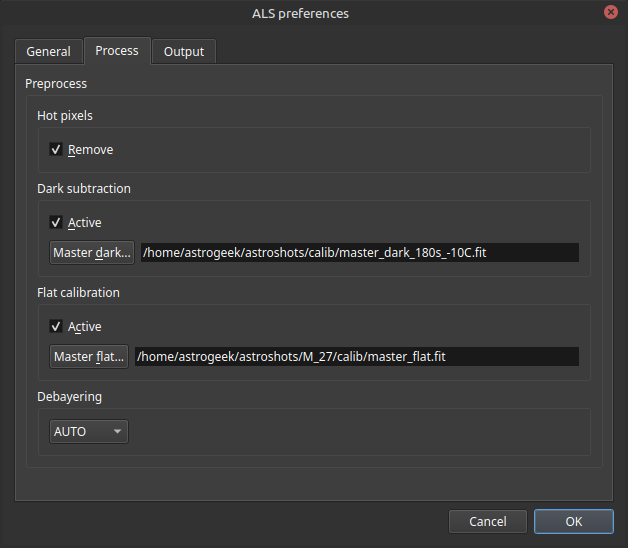
Preferences page Process tab
Preprocess
Hot pixel removal
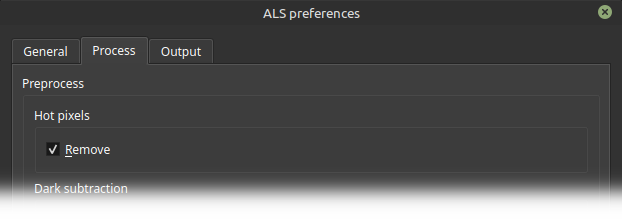
Hot pixel removal settings
-
🖱️ Check
Removeto activate the hot pixel removalℹ️ Default : OFF
Dark subtraction
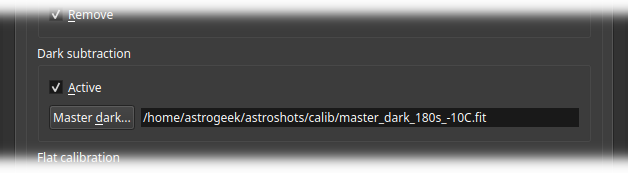
Dark subtraction settings
-
🖱️ Check
Activeto enable dark subtractionℹ️ Default : OFF
-
🖱️ Click
Master dark...to choose the master dark file to use for subtractionThe configured master dark path is displayed to the right of the button
⚠️ The master dark must have the same dimensions (width x height) as the image to be processed
If the dimensions are different:
-
Each subtraction attempt will add a WARNING message to the session log:
data structure inconsistency - Dark subtraction is SKIPPED
-
The
Acknowledgebutton in theSession logis activated -
If the
session logis hidden, the new issues indicator appears in theIssuessection of the panel.
ℹ️ It is not mandatory for the master dark and sub data formats to be identical
In case of a difference (e.g., master dark in 32-bit floats and raw in 16-bit integers):
- The master dark is converted before use
- The format difference is discreetly noted in the session log
Flat calibration
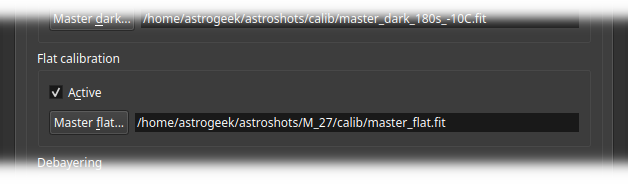
Flat calibration settings
-
🖱️ Check
Activeto enable flat calibrationℹ️ Default : OFF
-
🖱️ Click
Master flat...to choose the master flat file to use for calibrationThe configured master flat path is displayed to the right of the button
⚠️ The master flat must have the same dimensions (width x height) as the image to be processed
If the dimensions are different:
-
Each division attempt will add a WARNING message to the session log:
data structure inconsistency - Flat division is SKIPPED
-
The
Acknowledgebutton in theSession logis activated -
If the
session logis hidden, the new issues indicator appears in theIssuessection of the panel.
Debayering pattern
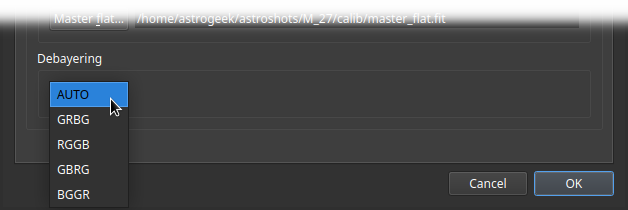
Debayering settings
ℹ️ Default : AUTO
ℹ️ AUTO mode recommended
The bayer pattern is extracted from the sub’s metadata and works most of the time.
If the metadata does not contain any pattern information:
- The sub will not be debayered
- Grid or checkerboard artifacts will be visible on the generated images
Searched Metadata
- FITS image: BAYERPAT FITS header
- Raw image: standard Exif header
💡 Manual Bayer pattern selection is useful in the following cases:
- Image metadata does not contain the Bayer pattern
- AUTO mode does not provide the expected result (i.e. grid or checkerboard on the debayered image)